Web Forms - Adding Booking Engine to your form
The final step in adding Booking Engine to your website is to update the page hosting the form to use the Booking Engine javascript library (BookingLibrary). This requires some minor additions to the…

The final step in adding Booking Engine to your website is to update the page hosting the form to use the Booking Engine javascript library (BookingLibrary). This requires some minor additions to the code on the page where you host your form.
Form Connector Javascript
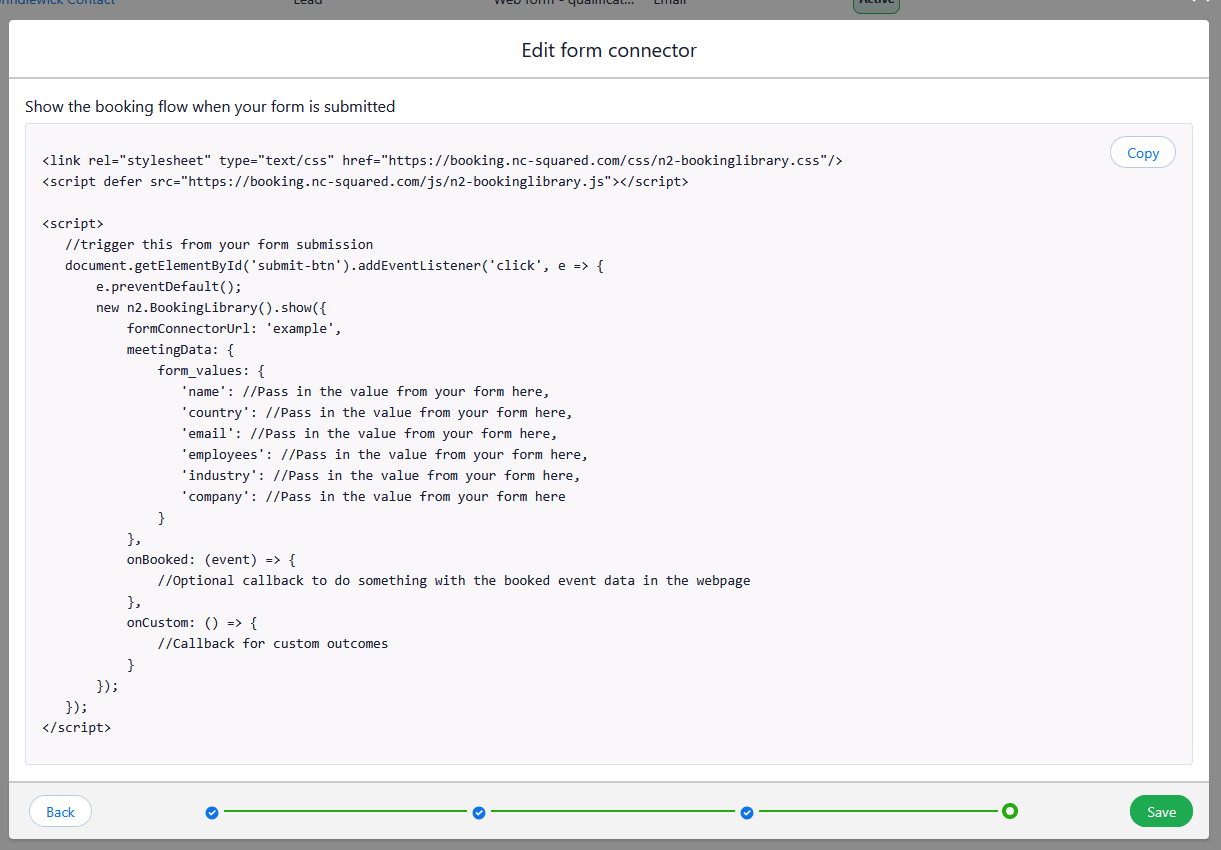
The final section of the Form Connector wizard provides you with the javascript to add to your site, this will connect your page to your configuration within Booking Engine.
Add the Booking Engine library to your page
Copy these two lines from your snippet into the <head> of your page, below your other stylesheets and scripts:
<link rel="stylesheet" type="text/css" href="https://booking.nc-squared.com/css/n2-bookinglibrary.css"/>
<script defer src="https://booking.nc-squared.com/js/n2-bookinglibrary.js"></script>
The stylesheet styles the Booking Engine pop-up. The script loads the library your form uses to open it. Keep the defer attribute so the script doesn't slow down your page loading.
Connect the form to Booking Engine
Add the remainder of your script just before the closing </body> tag. It runs when the form is submitted and passes each field's value to Booking Engine.
Paste the <script> block from your snippet just before the closing </body> tag. The app has already filled in your form connector and the values Booking Engine needs. All you need to do is replace each //Pass in the value from your form here comment with the matching field from your page, like this:
<script>
             //trigger this from your form submission
             document.getElementById('submit-btn').addEventListener('click', e => {
                 e.preventDefault();
                 new n2.BookingLibrary().show({
                     formConnectorUrl: 'example',
                     meetingData: {
                         form_values: {
                            'name': document.getElementById('name').value,
                            'country': document.getElementById('country').value,
                            'email': document.getElementById('email').value,
                            'employees': document.getElementById('employees').value,
                            'industry': document.getElementById('industry').value,
                            'company': document.getElementById('company').value
                         }
                     },
                     onBooked: (event) => {
                         //Optional callback to do something with the booked event data in the webpage
                     },
                     onCustom: () => {
                         //Callback for custom outcomes
                     }
                 });
             });
          </script>
Changing how the script is triggered
By default the snippet opens Booking Engine when the element with id="submit-btn" is clicked. That's just a starting point, and you can trigger it in whatever way suits your page:
- Use your button's existing id. Change
'submit-btn'ingetElementById('submit-btn')to your button's id, for examplegetElementById('book-demo'). - Trigger it when the form is submitted. Listen for the form's
submitevent instead of the button's click. The browser then checks required fields first, and pressing Enter works too. - Call it from your own code. If your form already has a submit handler, for example one that validates fields or sends data to your CRM, call
new n2.BookingLibrary().show({...})from there once your checks pass.
Step 4: Decide what happens after a booking
Booking Engine handles the booking in its pop-up. The two callbacks in the script let your page react to the result. Both are optional, so you can leave them empty.
Callback | When it runs | Typical use |
| The visitor completes a booking. | Show a thank-you message, hide the form, or record a conversion in your analytics. |
| Booking Engine reaches a custom outcome you've set up, instead of a booking. | Show a message or send the visitor to another page. |
For example, to replace the form with a thank-you message once someone books:
onBooked: (event) => {
              document.getElementById('submit-btn').form.outerHTML =
                  '<p>Thanks, you\'re booked in. We look forward to speaking with you.</p>';
},How did we do?
Booking Engine - External Services
Customising Branding