Booking Engine for Experience Sites component
Overview. The Booking Engine for Experience Sites component adds booking to your Experience Cloud site pages. Customers can book a meeting about the record they're viewing, see their bookings for tha…

Overview
The Booking Engine for Experience Sites component adds booking to your Experience Cloud site pages. Customers can book a meeting about the record they're viewing, see their bookings for that record and cancel them.
To use the component, site users need the Booking Engine Portal Organizer permission set. See Digital Experiences - User Access & Licensing.
Adding the component
- Open your site in Experience Builder.
- Go to the page you want to add booking to, for example Case Detail.
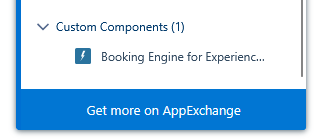
- Search "Booking Engine" in the components panel and drag Booking Engine for Experience Sites onto the page.
- Configure the component settings below.
- Publish the site.
Experience Builder may show a warning when you place the component. This doesn't affect how the component works.
Component settings
- Placement Configuration - Filled in automatically when you place the component. Leave it as it is.
- Booking Type - Lock the component to a single booking type, or leave it as None.
- Locked: the component always uses that booking type, and customers can't change it. Booking filters on the booking type aren't applied.
- None: customers choose from the active booking types available for Digital Experiences on this object. Booking filters apply. If only one booking type matches the record, it's selected automatically.
- Lock meeting platform - Hides the host's meeting platform, so customers can't see or change it.
- Hide event content - Hides the invite details, so customers can't edit the invite.
- Show cancellation controls - Shows the latest booking for the record with a Cancel option, plus View all bookings. Site users only see bookings they made themselves for that record.
Customer rescheduling is coming in a future release as its own setting.
[Screenshot: component settings panel]
Settings apply per placement
These settings belong to each placement of the component, not to the booking type. You can use the same booking type on another page, or on an internal record page, with different settings. Lock meeting platform and Hide event content are also available on the internal Booking Engine component.
Offering different booking types on one page
A locked component uses one booking type. To show different booking types on different records, set Booking Type to None and use booking filters so only one booking type matches each record.
Using the component in a screen flow
You can place the component inside a screen flow instead, then add the flow to your page. This is useful when you want a step before the booking, such as an intake question. Use the booking type's Booking Type Key to choose the booking type in the flow, so no record ID is exposed on the site.
How did we do?